Backbone Logger
Introduction
In Unity, the Console often turns into a chaotic wall of text as projects grow — hundreds of Debug.Log calls, warnings, and errors piling up without structure. Important information gets buried, and developers lose time searching for what truly matters. Backbone Logger was created to solve this problem: a clean, configurable logging system that brings order, clarity, and efficiency back to your debugging workflow.
What is Backbone Logger
Backbone Logger is a lightweight and powerful logging system for Unity that helps you keep your Console organized and efficient. It enables you to:
- Organize logs into categories (Gameplay, UI, Network, etc.).
- Filter messages by severity level (Debug, Info, Warning, Error, Critical).
- Assign colors to categories to quickly spot issues.
- Strip all logging code from production builds with a single checkbox, ensuring zero runtime cost.
- Group categories by prefix (e.g.,
Menu.UI,Menu.Actions→ group “Menu”) with a tri-state parent toggle and Delete Group action. - Import / Merge categories from another
LoggerConfig(Keep or Overwrite existing).
With Backbone Logger you see the signal through the noise, keeping your workflow clean and focused. It is simple to set up, easy to customize, and built to scale with projects of any size.
Key Benefits
Backbone Logger is a lightweight and configurable logging system for Unity — designed to keep your Console organized, your debugging efficient, and your builds clean.
Here’s why developers rely on it:
- Categories: Organize logs by system (Gameplay, UI, Network, AI, etc.) and toggle them on or off as needed.
- Color-Coded Logs: Assign colors to categories or levels for instant visual clarity in the Console.
- Log Levels: Filter messages by severity — Debug, Info, Warning, Error, Critical — to focus only on what matters.
- Compile-Time Stripping: Remove all logging code from production builds with a single checkbox for zero runtime cost.
- Simple Configuration: Manage everything from one
LoggerConfigasset — quick to set up, easy to scale. - Grouping by Prefix: Tri-state family toggle, bulk enable/disable, and Delete Group with confirmation.
- Import / Merge: Safely align configs across teams with Keep existing or Overwrite existing modes.
Unity Version Compatibility
Compatible with Unity 2020.3 LTS and newer. Supports Built-in, URP, and HDRP pipelines.
Quick Start
Goal: Set up Backbone Logger and see your first colored logs in under 2 minutes.
2.1 Create a LoggerConfig
The LoggerConfig asset stores all logger settings: categories, colors, and filtering options.
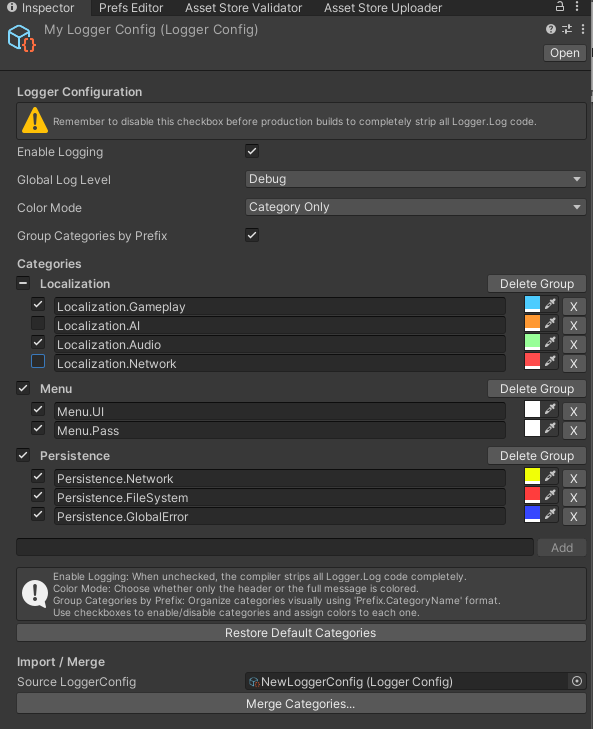
- In Unity, right-click in the Project window and select:
Create → Backbone → Logging → LoggerConfig - Name it, for example:
LoggerConfig_Main. - By default, it includes common categories: Gameplay, UI, AI, Audio, Network.
2.2 Initialize the Logger in Your Scene
Backbone Logger must load its configuration when the game starts. There are two ways to do this:
Option 1 — Use LoggerManager (recommended)
- Create an empty GameObject in your scene (e.g.,
Logger). - Add the
LoggerManagercomponent. - Drag your
LoggerConfigasset into the Config field.
This automatically applies the settings at runtime.
Option 2 — Initialize from Your Own Script
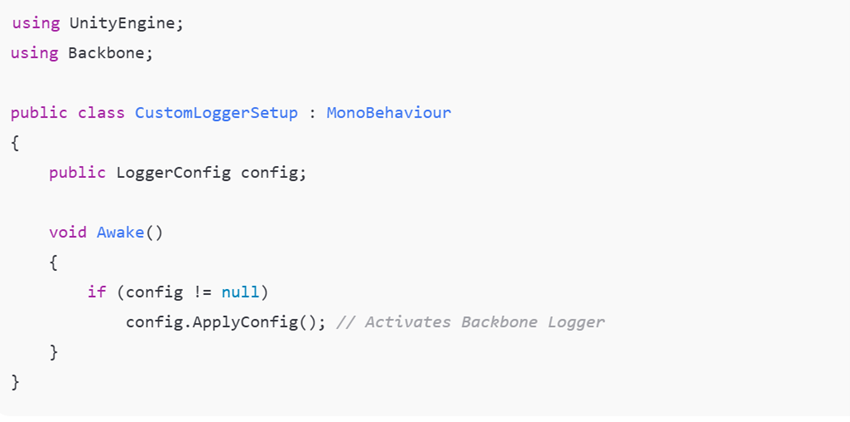
If you need more control, call ApplyConfig() manually.
2.3 Enable Logging Checkbox
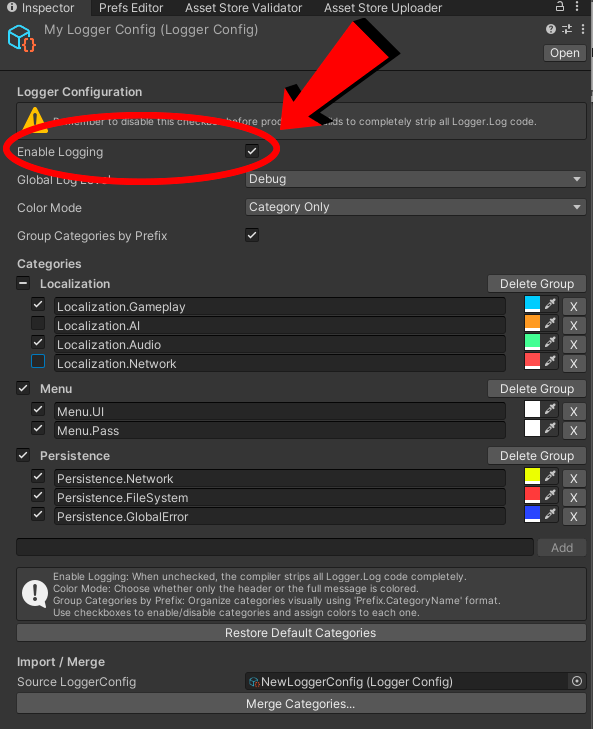
The Backbone Logger is disabled by default. Enable it by opening the LoggerConfig object and checking the box, but remember to turn it off before deployment.
2.4 Your First Log
Add a simple log to any script:

- Severity default: If not provided, it defaults to Info.
- Category default: If not provided, it defaults to General.
Example using defaults:

2.5 Press Play and Verify
- Hit Play in the Unity Editor.
- Open the Console window:
- You should see logs grouped by category and colored headers.
- If no log is shown, double-check that Enable Logging checkbox is enabled.
- If colors don’t appear, enable Rich Text in Console settings.
Backbone Logger is now ready to use!
3. In-Depth Configuration
This section explains how to fully customize Backbone Logger for your project. Everything is managed through the LoggerConfig asset.
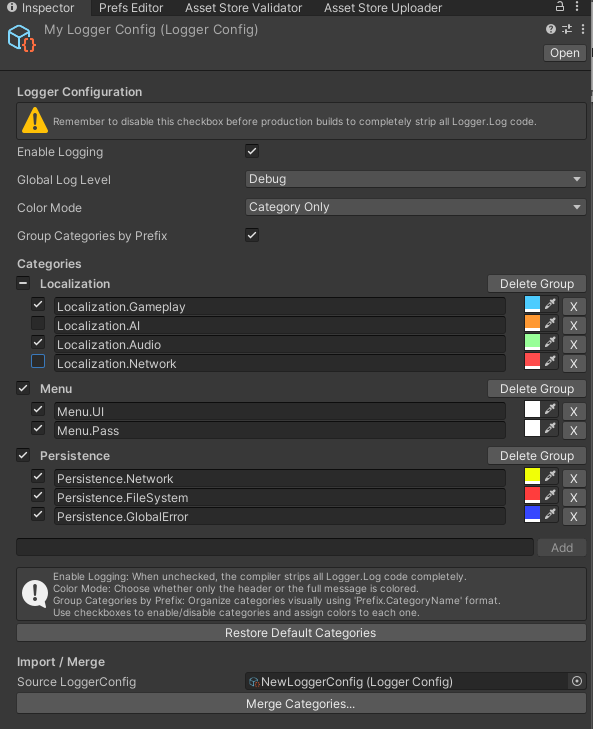
3.1 LoggerConfig Inspector Overview
| Field | Description |
|---|---|
| Enable Logging (Compile-Time) | Global checkbox that determines if Logger.Log calls are included in builds. When unchecked, the compiler strips all log code completely for zero runtime cost. |
| Global Log Level | Filters logs by severity. Example: setting this to Warning hides all Debug and Info logs. |
| Color Mode |
|
| Categories List | Add, rename, enable/disable, assign colors, and delete categories. Disabled categories won’t show in the Console. |
| Group Categories by Prefix | Group categories by the text before the first dot (e.g., Menu.UI, Menu.Audio → Menu). The parent checkbox supports a mixed state. Toggling it enables/disables all children. A Delete Group button removes the whole family with confirmation. |
| Import / Merge | Select a source LoggerConfig and choose Merge Categories…. Options: Keep existing (add missing only), Overwrite existing (add missing and update color/active for same-name entries). No replace-all. |
3.2 Log Levels
Each log has a severity level, which determines how it’s displayed and filtered.
| Level | Use Case |
|---|---|
| Debug | Internal development details like variable states or AI decisions. |
| Info | Normal events such as scene loads or checkpoints. (Default if not specified) |
| Warning | Something unexpected happened, but the game can continue. |
| Error | A problem occurred and should be fixed, but the game still runs. |
| Critical | A serious failure requiring immediate attention. |
3.3 Categories
Categories organize logs by feature or system. Examples: Gameplay, UI, Network, AI.
- Toggle categories on/off in the inspector.
- Assign a unique color to make logs visually distinct.
- Add custom categories by clicking Add in the inspector.
- Restore default categories anytime with the Restore Default Categories button.

3.3.1 Grouping by Prefix (Sections/Families)
Enable Group Categories by Prefix to cluster categories by their leading segment. For example, Menu.UI and Menu.Actions are shown under Menu.
- The group checkbox supports a mixed state when some children differ.
- Clicking the group checkbox applies the new state to all its children.
- Use Delete Group to remove the entire family. A confirmation dialog is shown before deleting.
3.3.2 Import / Merge from Another LoggerConfig
Use Import / Merge to align category lists across assets or teams without wiping your current setup.
- Assign a source
LoggerConfigin the Import / Merge section. - Click Merge Categories… and choose one:
- Keep existing: Add any categories from the source that you don’t already have. Existing names keep your current active and color.
- Overwrite existing: Add missing categories, and for same-name entries, overwrite active and color with source values.
No “replace all” mode by design. Merges are safe and intentional.
3.4 Compile-Time Stripping
Backbone Logger uses Unity’s Scripting Define Symbols to completely remove logging code from builds.
- Enabled: Logs are included and filtered at runtime.
- Disabled: Calls to
Logger.Log()are removed at compile-time, resulting in zero CPU or memory cost.
This is controlled by the Enable Logging (Compile-Time) checkbox at the top of the LoggerConfig inspector.
3.5 Advanced Code Examples
- Adding a Custom Category at Runtime
- Changing the Global Log Level Dynamically
- Minimal Logging Example



3.6 Best Practices
- Keep categories minimal and meaningful.
- Use Debug logs only during development.
- Always disable Enable Logging (Compile-Time) before production builds.
- Create separate
LoggerConfigassets for Development, QA, and Release setups. - When teams grow, enable Group Categories by Prefix to keep the list manageable and use Merge to align configs across projects.
Full API Documentation
Everything you need to use the API is already explained here. The full technical reference is only for advanced users who want to deeply customize the asset's behavior.
→ View full API documentation (advanced use only)
Conclusion & Support
Backbone Logger stands out as a clean, lightweight, and developer-focused solution for handling logs in Unity. As projects grow and the Console becomes harder to manage, Backbone provides the structure, clarity, and efficiency you need to debug with confidence.
Here’s why Backbone Logger is an excellent choice:
- ✅ Category-based logging: Keep Gameplay, UI, Network, AI, and more organized at a glance.
- ✅ Color-coded messages: Instantly identify critical logs and filter out noise.
- ✅ Severity filters: Focus on what matters most with Debug, Info, Warning, Error, and Critical levels.
- ✅ Compile-time stripping: Remove all logging code from production builds for zero runtime cost.
- ✅ Simple setup: Configure everything from a single
LoggerConfigasset in just minutes. - ✅ Grouping & Merge: Keep large projects tidy with section-based grouping and safe merges from other configs.
By using Backbone Logger, you not only gain control over your Console but also improve your team’s debugging workflow and ship cleaner builds. It’s intuitive for beginners, scalable for advanced projects, and efficient for long-term development.
In short: Backbone doesn’t just log your messages — it keeps your workflow clean, fast, and production-ready.
For help or questions, please contact at:
- Email: backbonegamelabs@gmail.com