Backbone Singer Tone
Introduction
Backbone Singer Tone converts live mic audio into musical pitch data in real time—frequency (Hz), MIDI note, cents, and note name. Drop the MicToneDetector prefab, pick a mic, and you’re capturing with level gating and optional smoothing. Built for music games and apps: rhythm mechanics, singing trainers, ear-training, vocal UIs—on desktop, mobile, and WebGL.
Key Benefits
- Voice-tuned monophonic pitch tracking with coarse-to-fine DSP.
- Low-latency windowed analysis with simple stability controls.
- Clean runtime API: last values as properties, UnityEvents for UI/logic.
- Silence gate with optional auto-clear to avoid stale notes.
- Works on Windows, macOS, Linux, Android, iOS, and WebGL (HTTPS).
Requirements and platform permissions
This section explains what Unity versions and audio setup you need, and how microphone permissions work on each platform. Read it before shipping to desktop, mobile, or WebGL so the mic starts reliably and users see the correct permission prompts.
Minimum requirements
- Unity: 2020.3+ (Mono or IL2CPP).
- Audio: microphone available.
- Platforms: Windows, macOS, Linux, Android, iOS, WebGL.
Permissions by platform
- Windows/macOS/Linux: grant mic access when prompted by the OS.
- Android: runtime permission
RECORD_AUDIO. Unity handles the request; ensure your app targets an SDK that supports runtime permissions. - iOS: add
NSMicrophoneUsageDescriptionto Info.plist with a non-empty message.
Notes and Tips
- Headsets reduce bleed and false detections.
- For low latency, start with
pitchWindowMs = 80–120. - If your device reports unknown mic caps, the asset falls back to the project sample rate.
Quick Start
The Quickstart for Backbone Singer Tone is simple: drop MicToneDetector,
tweak a few fields, optionally wire UnityEvents, and you are detecting sung notes in real time—no boilerplate.
- Add prefab: drag
MicToneDetectorinto your scene (comes with a mutedAudioSource). - Inspector: start with
autoStart = true,pitchWindowMs = 80–120,minVolumeDB ≈ -20,consecutiveDetections = 5,useClipRead = true. - Events (optional): wire
OnPitchHz,OnMidiNote,OnMidiCents,OnNoteNameto UI or gameplay. - Run: press Play, grant mic permission, sing. Values update live.
- Start/Stop manually (optional):
- Read latest values (polling):If you wish to use your own detection instead of being called by events, use


Prefab: MicToneDetector
MicToneDetector is your plug-and-play vocal pitch box. It listens to the mic, filters and analyzes
the signal for stable monophonic pitch, gates by level, and exposes data plus UnityEvents so UI and gameplay can react.
Think of it as a “voice → game” adapter: pick a mic, set the analysis window and gate, wire events, ship.
4.1 Components & Dependencies
- AudioSource (required): looped, muted; feeds the detector from
Microphone. - MicToneDetector script: capture, gating, detection, events.
4.2 Public Properties
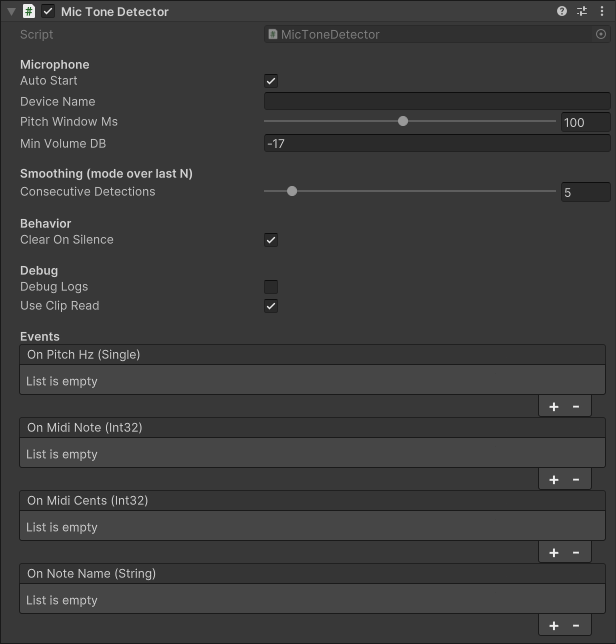
| Property | Description |
|---|---|
autoStart | Starts the mic when the GameObject enables. |
deviceName | Microphone device name. Empty selects the first device. |
pitchWindowMs | Analysis window (10–200 ms). Larger = steadier, smaller = snappier. |
minVolumeDB | Level gate threshold. Below this, detection is suppressed. |
consecutiveDetections | Mode smoothing window size (1–50). |
clearOnSilence | Emit zeros/empty when below gate to avoid stale UI. |
debugLogs | Print RMS/dB and decisions to the Console. |
useClipRead | Read mic clip directly for lowest latency. |
LastFrequencyHz | Latest frequency in Hz (0 = no tone). |
LastMidiNote | Latest MIDI note (0 = no tone). |
LastMidiNotePrecise | Note + cents/100 as float. |
LastCents | Intonation offset in cents (−50..+50). |
LastNoteName | Formatted name, e.g., “A# 4”. |
Active | Mic running flag. |
ListDevices() | Returns available microphone device names. |
StartMic(string) | Start capture. Optional device name. |
StopMic() | Stop capture. |
4.3 UnityEvents
| Event | Payload | Typical use |
|---|---|---|
OnPitchHz | float | Update a Hz label or drive visuals. |
OnMidiNote | int | Gameplay logic by note number. |
OnMidiCents | int | Intonation UI or scoring. |
OnNoteName | string | User-friendly note display. |
Usage Examples
Below are small, drop-in snippets that show common patterns:
• Display live data in UI (Hz, note name, MIDI, cents).
• React to specific notes with UnityEvents for gameplay or FX.
• Select a microphone programmatically at runtime.
Prerequisite: add a MicToneDetector to your scene (prefab or component).
6.1 Display Hz / Note / MIDI in UI
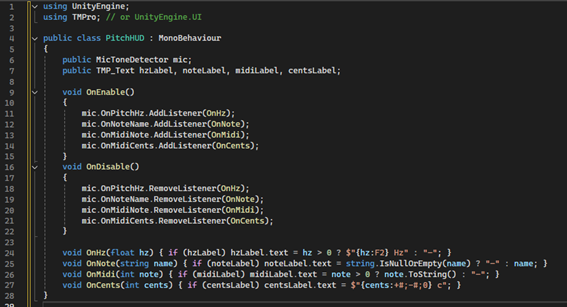
Shows live pitch data on screen. Wire Backbone Singer Tone events
(OnPitchHz, OnNoteName, OnMidiNote, OnMidiCents)
to UI Text/TMP fields to display values while singing.
6.2 React to notes with UnityEvents
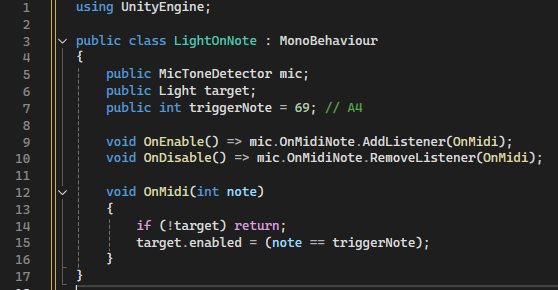
Trigger gameplay or FX when specific notes are detected. Subscribe to OnMidiNote
and run your logic on matching notes—lights, animations, scoring, or state changes.
6.3 Select microphone in code
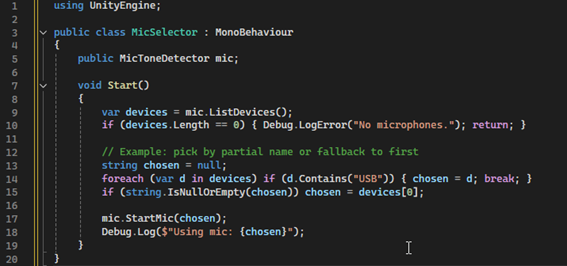
Programmatically choose the input device at runtime: list Microphone.devices,
pick a name, and call StartMic("DeviceName") on the component.
Troubleshooting
7.1 No pitch detected
- Permissions: accept the OS/browser mic prompt.
- Input level: raise voice or lower
minVolumeDB(e.g., −25 dB). EnabledebugLogsto see RMS/dB. - Window: increase
pitchWindowMsto 120–160 ms for weak fundamentals. - Noise/bleed: use a headset or move away from speakers.
- Device: verify
deviceNameexists:Debug.Log(string.Join(", ", Microphone.devices)). - Mono content: detector expects one voiced source; chords won’t work.
7.2 Permissions and WebGL specifics
- Serve over HTTPS.
- Start capture after a user gesture (button).
- Some browsers block autoplay—call
StartMic()from UI. - Check browser console for permission/SSL errors.
7.3 Latency vs stability and performance
- Lower latency: reduce
pitchWindowMs(e.g., 60–80) and keepconsecutiveDetectionssmall. - Higher stability: increase
pitchWindowMs(120–160) andconsecutiveDetections(5–8). - CPU tips: keep
useClipRead = true, minimize per-frame heavy listeners, disabledebugLogsin release.
FAQ
- Multiple voices/chords? No—monophonic voice only.
- Instruments? Often OK for clean monophonic sources; tuned for singing.
- Why zeros? Below level gate or
clearOnSilencecleared values. - Sharps vs flats? Output uses sharps by default (e.g., “A# 4”).
- Cents range? −50..+50 around the detected MIDI note.
- Does it play audio back? No. The
AudioSourceis muted. - Start/stop at runtime?
StartMic()/StopMic()or setautoStart = true. - GC? Minimal in steady state; keep custom listeners light.
Technical Reference (Doxygen) — read this first
Backbone Singer Tone’s runtime is a full DSP stack: windowed analysis, band-shaping IIR filters, coarse-to-fine pitch search, interpolation, overlap handling, and history smoothing. The internal API exposes levers that interact in non-obvious ways. The Doxygen reference is aimed at experienced developers who need to extend or audit internals (e.g., filter responses, search curves, latency/smoothing strategies).
If you only need to detect notes and drive gameplay, stick to the prefab and high-level API. If you plan
to modify algorithms, read classes in order: SingerToneDSP → SingerToneTracker →
IIRFilter → CircularBuffer<T> → SingerToneDetector.
→ View full API documentation (advanced use only)
Conclusion & Support
Backbone Singer Tone gives your game a reliable voice interface: simple setup, real-time results, and clear hooks for UI and logic. Profile on target hardware, tune the analysis window and smoothing, and ship with confidence.
For questions or support, contact: backbonegamelabs@gmail.com